Instructions
The page shows how to turn a model into building instructions that people follow step by step.
Steps
The command bricky instructions orders a model's elements into steps, a few elements each, as LEGO® instructions do.
Large LEGO® sets add about five elements a step, so a step here adds six at most.
The steps go bottom up, and each keeps to one section of the build script: the function that build() called to place its elements.
A step also keeps its elements close together, within 8 studs across and about one brick in height.
The command writes a page that opens the 3D viewer on the first step:
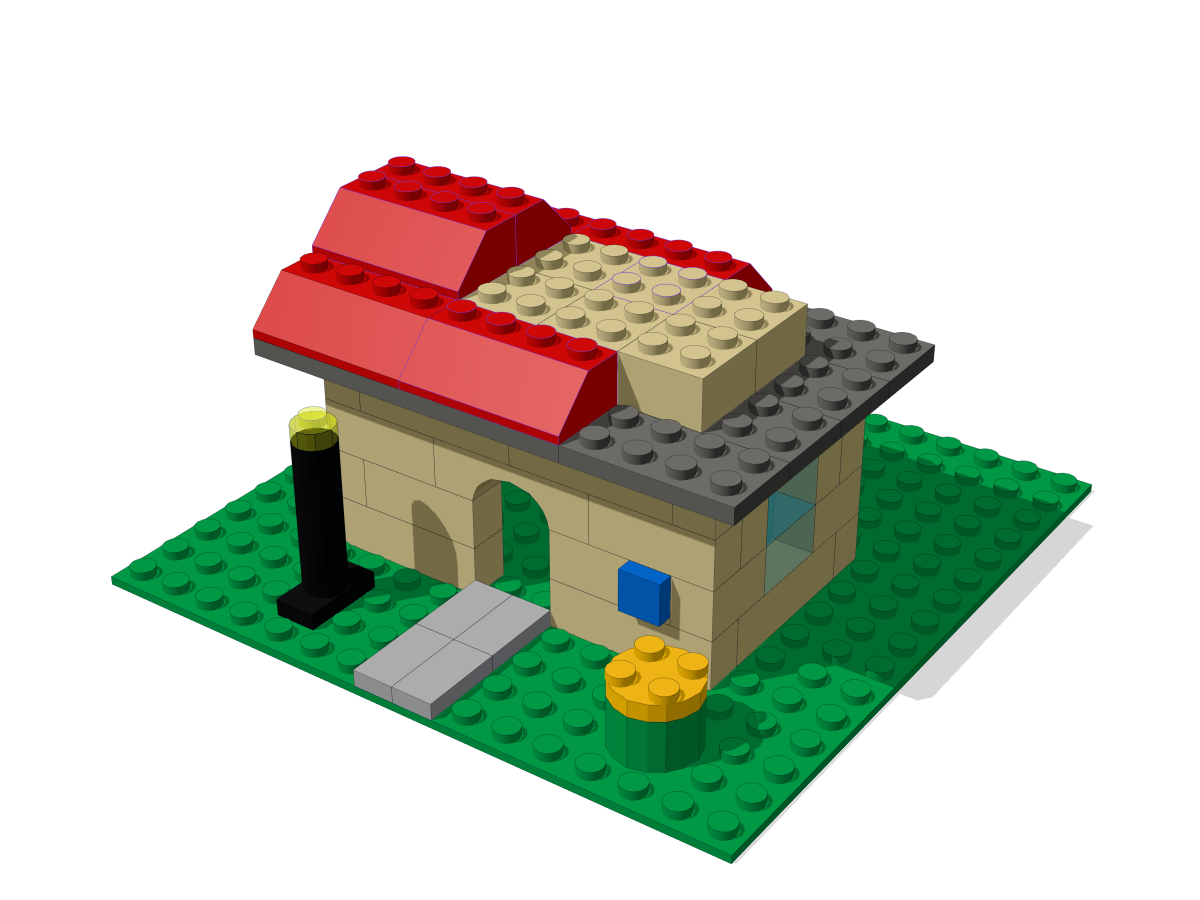
Build order
An order is buildable when every element goes on with straight moves, so the order follows three rules.
- Something holds each element as it goes on: the ground, or an element it presses onto.
- Each connection forms as its second element goes on, so that element moves toward the first.
- Nothing already placed stands in an element's way: the space its solids sweep as they arrive.
An element going on downward arrives from above the model.
An element going on sideways drops from above to a stud's height away from its place, then slides in.
An element held from above is pushed up from a brick's height below its place.
The sweeps are exact, slopes included, since every solid is convex with integer corners.
Every step thus leaves what is built joined to the ground, and nothing floats.
The module bricky.instructions gives the steps to Python: here a plate goes on after the brick whose side stud holds it, moving north.
from bricky import ModelBuilder, default_catalog
from bricky.instructions import build_instructions

builder = ModelBuilder("bracket")
builder.place("87087", at=(0, 1, 0), color="Red", id="brick")
builder.place("3024", at=(0, 0.6, 0.5), color="Blue", rotation="+x+z", id="plate")
steps = build_instructions(builder.build(), default_catalog()).steps
>>> [(step.elements, step.approaches) for step in steps]
[((0, 1), (Vector(x=0, y=0, z=-1), Vector(x=0, y=1, z=0)))]
Approaches
Each element has a natural approach toward the ground, and the order keeps to it while it can. An element rests on what lies below it wherever it can, and otherwise goes on sideways or hangs from what lies above. An element that hangs, with no room below to push it up, goes on attached under the element it hangs from, the two moving as one. The order never closes the last natural approach of an element still to go on. When no element can go on naturally, one goes on along another approach the rules allow, as a builder sometimes must. A sail of plates hanging from a yard thus goes on from the yard down, one plate under the next, joined to the ship at every step.
Locked elements
Elements that lock one another in leave no order that follows every rule, and the command says which rule each step breaks. Two overlapping bricks, for instance, stand in each other's way. The order still places every element: it takes the one that breaks the fewest rules, lowest first, and notes what that breaks. When elements lock, a second order also lets them slide in across from a side before the last stud's height, and the order with fewer notes wins. A note means a builder angles that element in, or builds part of the model apart and joins it on.
wrote locked.instructions.html: 2 steps for 2 elements, 1.0 a step on average
2 steps break the build order, where elements lock one another in:
  step 1: first goes on into the way of second
  step 2: second goes on though first stands in its way
In the viewer
The viewer's Instructions mode shows what is built so far and moves each new element in along its approach.
A card lists the parts the step adds, a picture of each with how many to take, and outlines the new elements on the model.
The camera frames each step, and turns to another corner when the new elements hide from the current one.
The arrow keys step forward and back, and the page's address names the step, such as cottage.instructions.html#step-17, to share it.
Every viewer that bricky render --html writes offers the same mode, behind the Instructions button or the key N.
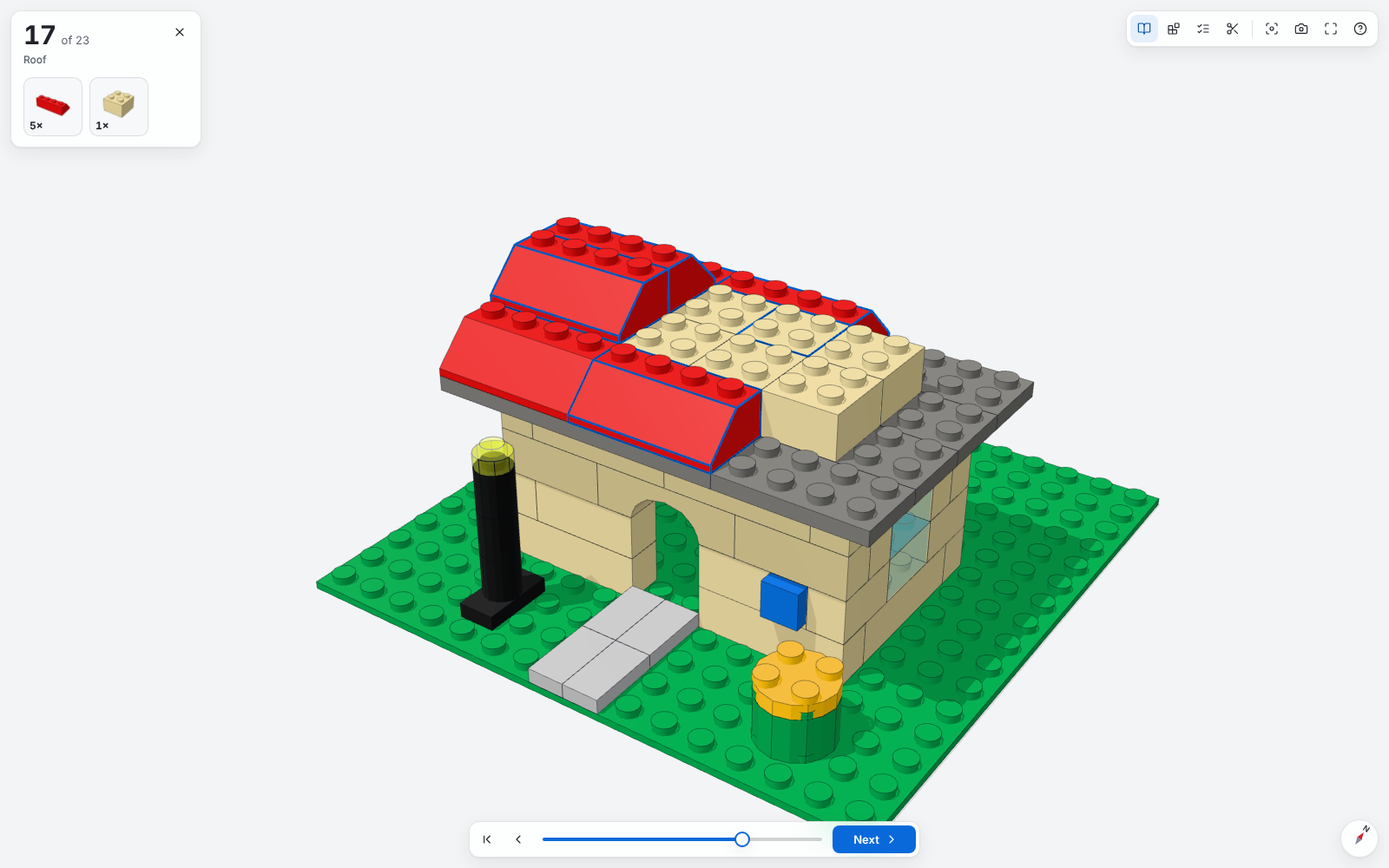
The option --elements-per-step changes how many elements a step adds at most, and the MCP tool write_instructions writes the same page for an agent.